
Mastering Your Digital Geography: A Comprehensive Guide to Updating Your Home Location on Google Maps
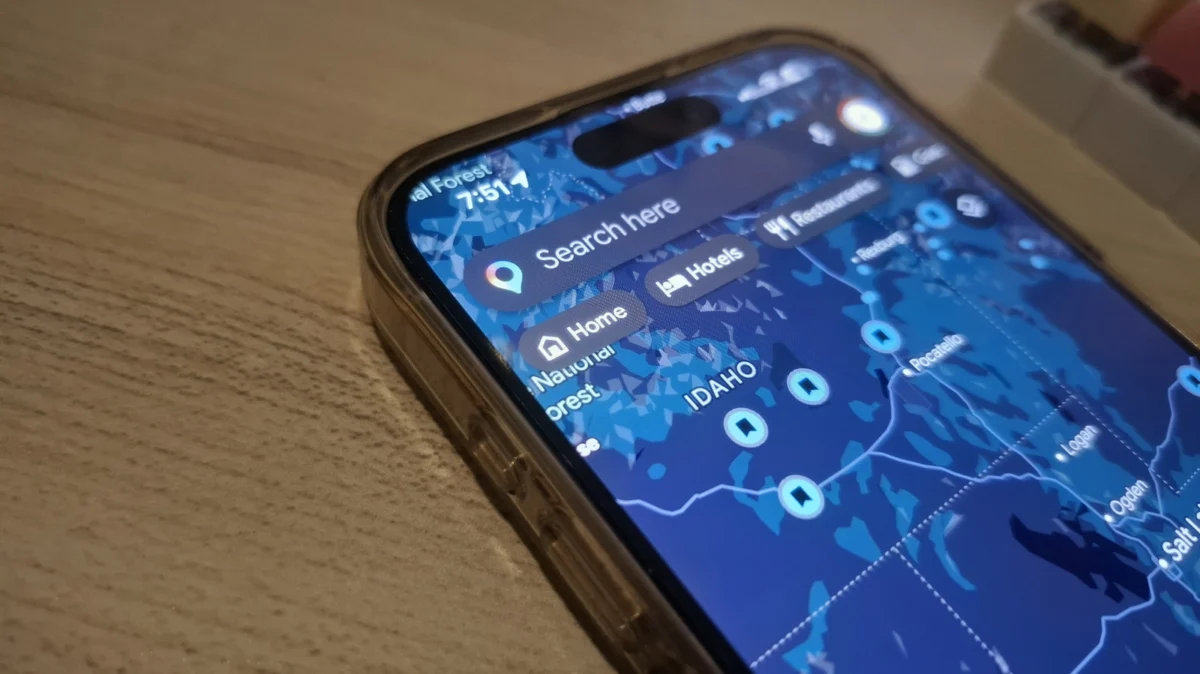
In the modern era of digital navigation, Google Maps has evolved from a simple directory of streets into a sophisticated, personalized geodata engine. For the over one billion monthly active users worldwide, the "Home" and "Work" labels within the application are more than just text on a screen—they are the anchors of a daily routine. However, as life changes through relocation, urban development, or career shifts, maintaining an accurate digital "Home" base becomes essential for efficiency. This guide explores the technical nuances, step-by-step procedures, and broader implications of managing your primary location data within the Google ecosystem.
Main Facts: The Importance of Accurate Location Labeling
The "Home" label in Google Maps serves as a foundational data point for the Google Assistant, Android Auto, Apple CarPlay, and the core Maps interface. By defining a home address, users unlock a suite of predictive features that go beyond simple turn-by-step directions.
The Power of One-Tap Navigation
The primary benefit of a saved home location is the "one-tap" philosophy. Instead of manually entering a street address, city, and zip code while sitting in a driveway or a parking garage, users can simply tap a single icon or use a voice command like "Hey Google, take me home." This reduces driver distraction and streamlines the transition from an unfamiliar location back to a place of residence.
Predictive Intelligence and Traffic Alerts
Google Maps uses your saved home and work locations to provide proactive "Commute" information. If the app detects a major accident or road closure on your typical route home, it can send a notification to your smartphone before you even leave your current location. This predictive capability relies entirely on the accuracy of the saved "Home" coordinate.
Integration Across the Google Ecosystem
Your home location is not siloed within the Maps app. It synchronizes with your Google Account, influencing search results (e.g., "restaurants near me") and helping Google Assistant provide accurate weather forecasts and localized news.
Chronology: Step-by-Step Procedures for Updating Home Locations
Updating your home address requires navigating different interfaces depending on your device and preferred method. Below is the chronological sequence for the two most effective methods: the native application and the centralized Google Account portal.
Method 1: Utilizing the Google Maps Mobile Application (Android and iOS)
The mobile application remains the most direct way to modify location data. While the interfaces for Android and iOS are remarkably similar, there are subtle differences in menu placement.
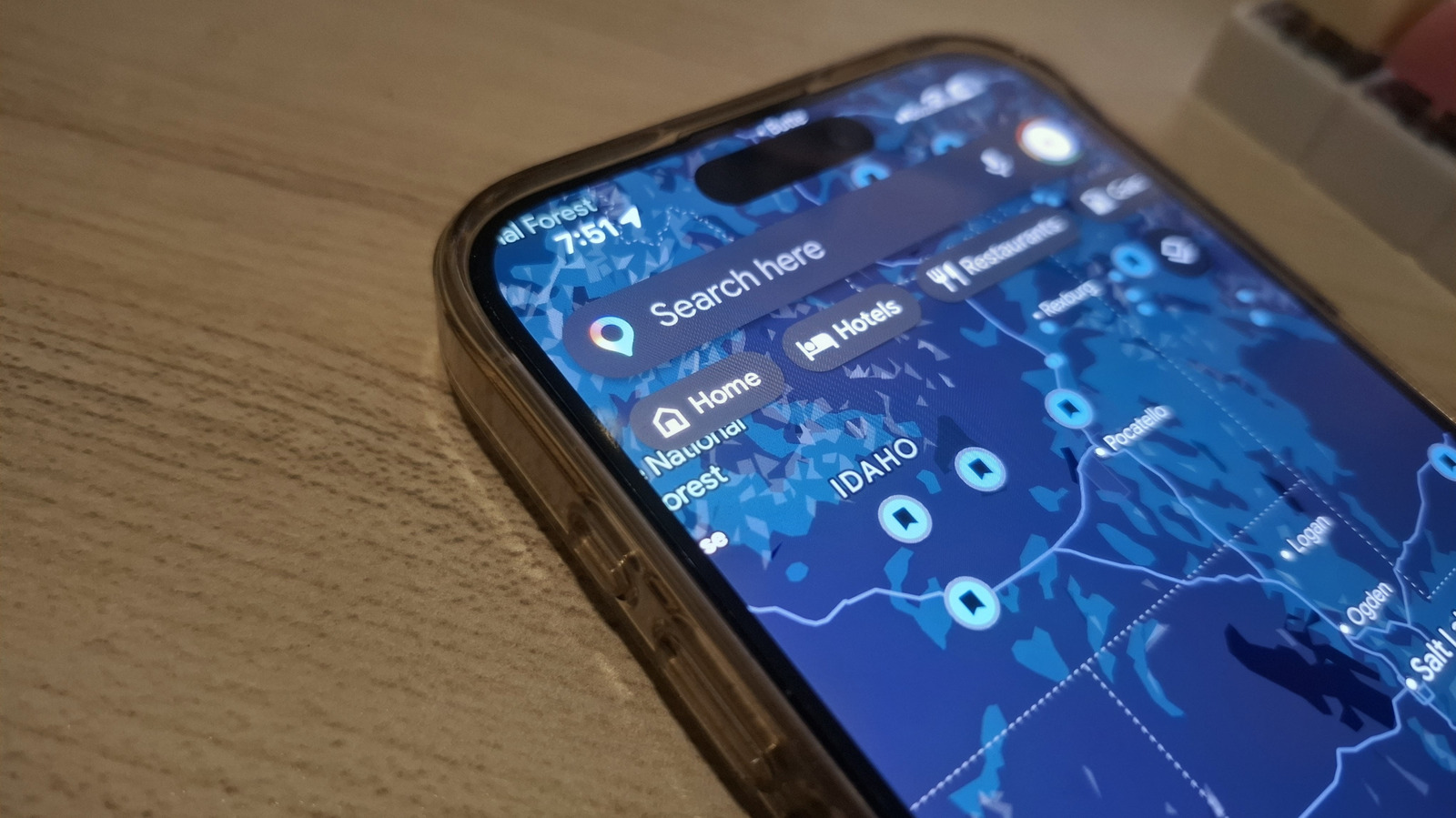
1. Accessing the Labeled Menu:
Open the Google Maps app on your smartphone. Ensure you are signed in to the correct Google Account. At the bottom of the screen, tap on the "Saved" icon (often represented by a bookmark symbol). Within this menu, look for the "Labeled" section under the "Your lists" header.
2. Identifying the Home Label:
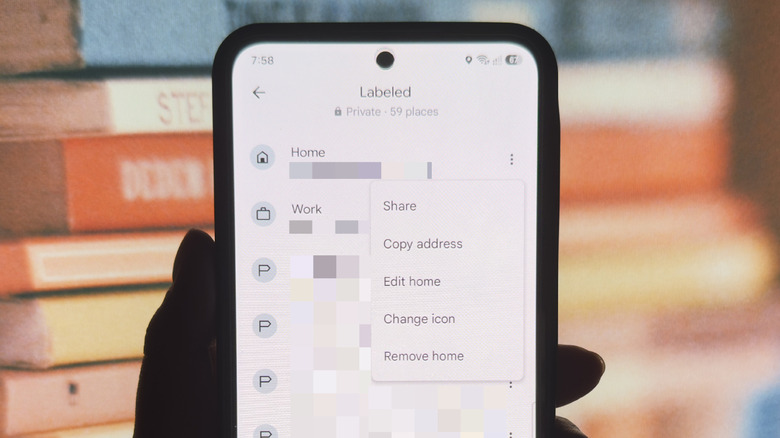
Inside the Labeled menu, you will see pre-defined categories for "Home" and "Work." To the right of the "Home" entry, you will find three vertical dots (on Android) or three horizontal dots (on iOS). Tap this icon to open the options menu.
3. Executing the Edit:
Select "Edit home." At this stage, you have two choices:
- Manual Entry: Type the new street address into the search bar. Google will provide autocomplete suggestions; ensure you select the correct one to ensure the pin drops accurately on the map.
- Select on Map: If you are currently at your new residence, or if the street address is in a new development not yet indexed by name, you can choose "Select on map." This allows you to manually drag the red pin to the exact rooftop of your home.
4. Finalizing and Saving:
Once the address is correct or the pin is placed, tap "Save" or "Done." The app may take a few moments to sync this data across all connected devices.
Method 2: The Google Account Portal (Cross-Platform)
For users who prefer a desktop environment or are experiencing syncing issues on their mobile devices, the Google Account "Personal Info" page offers a robust alternative.
1. Navigating to Account Settings:
On a web browser, go to myaccount.google.com. If you are on a mobile device, you can access this via the Google app by tapping your profile picture and selecting "Manage your Google Account."
2. Accessing Personal Information:
Locate the "Personal info" tab on the left-hand sidebar (desktop) or top navigation bar (mobile). Scroll down to the section titled "Addresses."
3. Modifying the Home Entry:
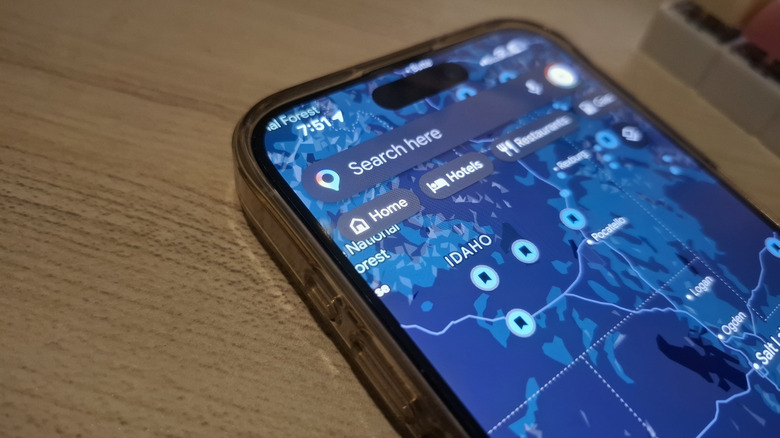
Click on "Home." You will be presented with your current saved address. Click the pencil icon or the address itself to enter the editing mode.
4. Deleting or Updating:
You can either "Remove" the address entirely if you are in a transition period or type in the new location. Similar to the mobile app, you can use the map interface to drop a pin manually. Click "Save" to commit the changes to your global Google profile.
Supporting Data: The Scale and Impact of Local Search
To understand why Google invests so much in these "Labeled Places," one must look at the data surrounding local intent.
- Local Search Volume: According to industry data, nearly 46% of all Google searches have a "local intent." This means users are looking for things in their immediate vicinity. By knowing exactly where "Home" is, Google can filter these results with extreme precision.
- The "Near Me" Phenomenon: Searches for "near me" or "close by" have grown by over 500% in the last few years. The "Home" label acts as the default "Me" in these queries when a user is at their residence.
- Navigation Accuracy: Google Maps processes over 20 petabytes of data, including satellite imagery and Street View, to ensure that when a user sets a "Home" pin, it corresponds to a navigable point. The accuracy of these pins directly affects the success of "Last Mile" delivery and emergency service routing.
Official Responses: Google’s Stance on Data Privacy and Accuracy
Google’s official documentation emphasizes that "Home" and "Work" labels are private to the user. They are not visible to other users of Google Maps unless explicitly shared via Location Sharing.
Privacy Controls
In response to growing concerns over location tracking, Google has implemented "Auto-delete" features for Location History. While your "Home" label is a static piece of data, Google provides the "My Activity" portal where users can see how their location data is used. Official statements from Google Cloud and Maps divisions highlight that labeled locations are encrypted and that users have the right to delete this information at any time without closing their accounts.
Data Verification
Google’s official support channels suggest that if a user’s home address appears incorrectly on the map (e.g., the street name is wrong or the house number is misplaced), users should use the "Edit the map" or "Report a problem" feature rather than just changing their personal label. This helps improve the map for the entire community.
Implications: The Future of Personalized Navigation
The ability to change and maintain a home location is a small part of a much larger shift toward contextual computing. As we move forward, the implications of this data extend into several cutting-edge fields:
AI and Generative Assistants
With the integration of Gemini (Google’s AI) into the Maps ecosystem, your home location will become a prompt variable. Future versions of the app may not just navigate you home; they might say, "Since you’re heading home and it’s a Friday, would you like me to order your usual pizza from the shop around the corner?"
Smart Home Integration
The "Home" label is increasingly tied to geofencing for smart homes. When Google Maps detects your phone approaching the "Home" coordinate, it can trigger routines via Google Home—such as turning on the porch lights, adjusting the thermostat to a comfortable 72 degrees, or opening a smart garage door.
Urban Planning and Traffic Management
On an aggregated, anonymized level, the movement of users between "Work" and "Home" labels provides city planners with invaluable data on traffic flow and the need for public transit infrastructure. While individual privacy is maintained, the collective accuracy of these labels helps build more efficient cities.
Conclusion
Updating your home location on Google Maps is more than a simple clerical task; it is an essential maintenance step for your digital life. Whether you utilize the streamlined mobile interface or the comprehensive Google Account portal, keeping this data current ensures that your navigation is safer, your search results are more relevant, and your smart devices function with the context they require to be truly helpful. As navigation tech continues to evolve, the "Home" pin remains the most important coordinate on the map.