Beyond the Power Button: Optimizing the Modern Workflow via Windows Automation

In the contemporary professional landscape, the first ten minutes of the workday are often characterized by a repetitive, manual ritual. For millions of Windows users, "starting work" involves a predictable sequence of clicks: launching a web browser, opening a communication platform like Slack or Microsoft Teams, navigating to a project management dashboard, and perhaps initiating a curated playlist to foster focus. While these actions individually take mere seconds, their cumulative effect represents a significant drain on cognitive momentum and annual productivity.
Recent insights into the Windows operating system have highlighted a powerful, yet frequently overlooked, utility that promises to eliminate this "digital friction." The Windows Task Scheduler, a tool traditionally reserved for system administrators and power users, is emerging as the ultimate productivity hack for the average professional. By transitioning from a manual startup routine to an automated one, users can transform their PC from a passive tool into a proactive assistant.
The Core Functionality: Understanding Task Scheduler
At its essence, the Windows Task Scheduler is a service that allows users to create and run tasks automatically based on specific triggers. Unlike the "Startup" folder found in the Windows Task Manager—which simply launches programs indiscriminately upon boot—the Task Scheduler offers a granular level of control. It can be programmed to respond to various stimuli, such as a user logging in, the system entering an idle state, or even the occurrence of a specific system event.
For the modern professional, the most potent application of this tool is the "At log on" trigger. This ensures that the moment a user enters their credentials, the operating system begins the heavy lifting of preparing the workspace. This automation extends beyond simply opening an executable file; it can be configured to launch specific websites, open applications to designated folders, or execute complex scripts that prepare the local environment for development or creative work.
A Chronological Guide to Automating the Morning Routine
Implementing an automated morning routine requires a structured approach. To move from a cluttered manual process to a streamlined automated one, users should follow a phased implementation strategy.

Phase I: The Basic Application Launch
The first step in reclaiming morning time is identifying the core software required for daily operations.
- Initialization: Access the utility by typing "Task Scheduler" into the Windows Start Menu.
- Task Creation: Within the "Actions" pane, selecting "Create Basic Task" initiates a wizard that simplifies the process.
- The Trigger: For a morning routine, the "When I log on" trigger is the optimal choice. This distinguishes the task from a "System Startup" trigger, which would attempt to run the programs before the user has even reached the desktop.
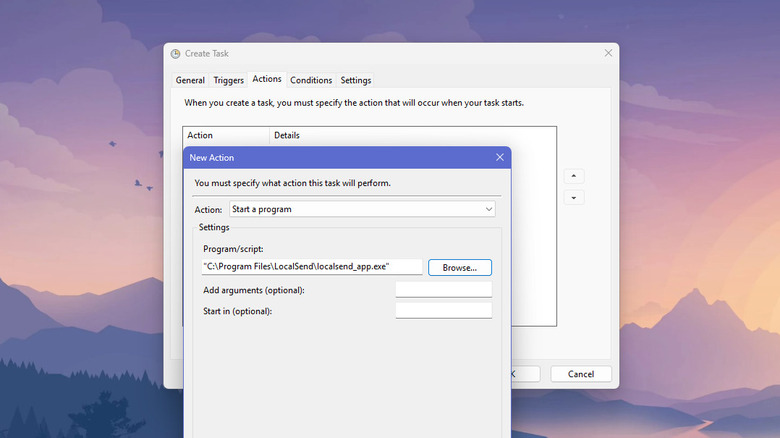
- The Action: Selecting "Start a program" allows the user to browse for the
.exefile of their desired application.
Phase II: Advanced Arguments and Web Integration
The true power of the Task Scheduler lies in its ability to accept "arguments." An argument is a specific instruction passed to a program upon launch.
- Browser Automation: Instead of simply opening Google Chrome, a user can add a string of URLs in the "Add arguments" field. For example, entering
https://outlook.office.com https://trello.comwill force the browser to open directly to the user’s inbox and project board in separate tabs. - Media and Communication: Many modern applications support Uniform Resource Identifiers (URIs). By using
explorer.exeas the primary program and a URI (such asspotify:playlist:ID) as the argument, Task Scheduler can automatically begin playing a specific focus playlist the moment the desktop loads.
Phase III: Sequencing and Resource Management
A common pitfall of automation is "Resource Contention." If a user schedules ten resource-heavy applications to launch simultaneously, the system’s CPU and RAM may spike, leading to a temporary freeze.
- Implementing Delays: Expert users recommend utilizing the "Delay task for" option found in the Task properties. By staggering launches—opening email immediately, but delaying a heavy IDE or creative suite by two minutes—the system maintains a smooth, responsive trajectory during the boot sequence.
Supporting Data: The Economics of Micro-Automation
The push for OS-level automation is supported by significant data regarding workplace efficiency. According to various productivity studies, "context switching"—the time lost when moving between unrelated tasks or setting up a new environment—can account for up to 40% of a worker’s productive time.
| Metric | Manual Setup | Automated Setup | Annual Savings (250 Days) |
|---|---|---|---|
| Setup Time | 4.5 Minutes | 0 Minutes | 18.75 Hours |
| Cognitive Load | High (Repetitive) | Zero | N/A |
| Error Rate | Moderate (Missed Tabs) | Zero | N/A |
By automating the first 4.5 minutes of every day, a professional effectively reclaims over two full workdays per year. Furthermore, the psychological benefit of arriving at a "ready-made" digital workspace cannot be overstated; it allows the brain to enter a "flow state" immediately rather than navigating the administrative hurdles of opening software.

Technical Nuances and Official Workarounds
While Task Scheduler is robust, it faces modern challenges, particularly with the advent of the Universal Windows Platform (UWP) and the Microsoft Store. Applications installed via the Microsoft Store do not always have a traditional .exe path, making them difficult to locate via the standard "Browse" function.
The PowerShell Solution
Official documentation and community forums, including Microsoft’s developer network, suggest a workaround involving PowerShell for Store-based apps (like the modern versions of Calculator, Mail, or certain versions of Slack). Instead of pointing to a file path, users can set the program to powershell.exe and use a command-line argument to "Start-Process" via the App’s Package Family Name. While more complex, this ensures that even the most modern Windows apps can be integrated into a legacy automation tool.
Security and Administrative Oversight
From an enterprise perspective, IT departments often utilize Task Scheduler for background maintenance, such as running "Disk Cleanup" or checking for updates during off-hours. For the individual user, it is vital to ensure that automated tasks do not involve sensitive plain-text passwords in arguments. Security experts suggest that while automating workflow is beneficial, users should avoid automating tasks that bypass multi-factor authentication (MFA) or other security protocols required by their organization.
Expert Insights: The Shift Toward the "Autonomous Desktop"
Industry analysts view the resurgence of interest in tools like Task Scheduler as a symptom of a broader trend: the shift toward the "Autonomous Desktop." As Artificial Intelligence (AI) becomes integrated into operating systems via tools like Microsoft Copilot, the expectation is that the OS should anticipate user needs.
"We are moving away from the era where the user serves the computer by manually organizing windows and launching processes," says Marcus Thorne, a systems architect specializing in digital ergonomics. "Task Scheduler is the precursor to the AI-driven workspace. It allows the user to define their ‘intent’ once, so the machine can execute that intent perpetually. It’s about moving from a reactive relationship with your PC to a proactive one."
However, Thorne warns that automation is only as good as the hardware it runs on. "If you are running a machine with a traditional HDD (Hard Disk Drive), aggressive automation will feel like a bottleneck. This workflow is optimized for the NVMe SSD era, where data throughput allows for near-instantaneous multi-application loading."
Implications: Reclaiming the Professional Morning
The implications of mastering Task Scheduler extend beyond mere convenience. In an era of remote work and increasing digital distractions, the ability to create a "locked-in" environment is a competitive advantage. When a computer automatically opens the necessary tools for a specific project, it serves as a digital nudge, guiding the user toward productivity before the temptation to browse social media or news sites can take hold.
Furthermore, this level of customization fosters a sense of digital ownership. By tailoring the operating system’s behavior to match personal work habits, users reduce the friction between their thoughts and their output.
In conclusion, the Windows Task Scheduler is far more than a legacy system tool. It is a bridge between the manual labor of the past and the automated efficiency of the future. For those willing to invest thirty minutes in its configuration, the reward is a seamless, professional start to every day—a morning where the computer is ready to work the moment the user is. In the high-stakes world of modern business, where time is the most precious commodity, automating the boring tasks isn’t just a "hidden feature"—it’s an essential strategy for success.