The Digital Strain: Optimizing Monitor Environments to Combat Computer Vision Syndrome

In an era defined by the "digital-first" workflow, the average professional spends upwards of seven to nine hours a day staring at a high-intensity display. While the transition from paper-based offices to digital workstations has revolutionized productivity, it has introduced a silent epidemic: Computer Vision Syndrome (CVS). Also known as Digital Eye Strain, this condition encompasses a range of ocular and vision-related problems resulting from prolonged computer, tablet, e-reader, and smartphone use.
However, eye fatigue is not an inevitable byproduct of the modern workplace. By understanding the intersection of hardware capabilities and software configurations, users can drastically reduce the physiological toll of screen time. This report examines five critical monitor settings and environmental adjustments designed to alleviate eye strain, supported by clinical data and expert recommendations.
Main Facts: The Five Pillars of Ocular Comfort
The primary cause of digital eye strain is not the screen itself, but rather the disparity between the monitor’s output and the human eye’s natural processing requirements. To bridge this gap, users must focus on five specific technical areas:
- Luminance Balance (Brightness and Dark Mode): Ensuring the monitor does not act as a primary light source in a dark room.
- Visual Definition (Contrast): Optimizing the "sharpness" of text to prevent the brain from over-exerting during character recognition.
- Chromatic Regulation (Color Temperature): Reducing high-energy visible (HEV) blue light, which is linked to sleep disruption and retinal stress.
- Typographic Ergonomics (Scaling and Fonts): Utilizing size and spacing to reduce the need for physical leaning and squinting.
- Spatial Fidelity (Resolution): Maintaining native pixel density to avoid "blur-induced" fatigue.
By systematically addressing these settings, users can transform a harsh digital interface into a comfortable viewing environment.

Chronology: The Evolution of Display Technology and Eye Health
The relationship between humans and their screens has evolved through several distinct technological eras, each presenting unique challenges to ocular health.
The CRT Era (1980s – Late 1990s)
The early decades of computing were dominated by Cathode Ray Tube (CRT) monitors. These devices were notorious for low refresh rates and "flicker," which caused significant headaches and eye strain. Users often had only rudimentary control over contrast and brightness via physical knobs. The primary health concern was radiation and the intense muscular fatigue caused by focusing on low-resolution, flickering text.
The LCD and LED Revolution (2000s – 2010s)
The shift to Liquid Crystal Displays (LCD) and Light Emitting Diodes (LED) eliminated the flicker of CRTs but introduced a new problem: high-intensity blue light. As monitors became thinner and brighter, they began to ship with "factory default" settings designed to look impressive in brightly lit retail stores rather than ergonomic office environments. This era saw the first widespread recognition of Computer Vision Syndrome.
The Modern Ergonomic Era (2020 – Present)
Today, we are in an era of "eye-care certified" displays. Manufacturers now integrate TUV Rheinland-certified low blue light filters and "flicker-free" technology directly into the hardware. Software has caught up, with operating systems like Windows 11 and macOS Sonoma offering system-wide "Night Shift" and "Dark Mode" features as standard utilities.

Supporting Data: The Science Behind the Strain
Research into digital eye strain reveals a staggering impact on the global workforce. According to data from the American Optometric Association (AOA), nearly 58% of all computer users experience symptoms of CVS.
The Mechanics of Fatigue
When we look at a screen, our blink rate drops by approximately 66%. Normally, a human blinks about 15 to 20 times per minute. In front of a monitor, this drops to 5 or 7 blinks. This leads to dry eyes, which causes the cornea to lose its smooth optical surface, resulting in blurred vision and further strain as the eye tries to compensate.
The Contrast Ratio Factor
A study published in the Journal of Ergonomics found that users perform significantly better—with less reported strain—when viewing "positive polarity" (dark text on a light background) in well-lit rooms, but "negative polarity" (Dark Mode) becomes essential in low-light environments to prevent "disability glare."
Blue Light and Melatonin
Research from Harvard Medical School indicates that high-energy blue light (wavelengths between 415 and 455 nanometers) suppresses the secretion of melatonin more than any other light frequency. This not only causes eye fatigue but disrupts the circadian rhythm, leading to poor sleep quality, which in turn exacerbates eye sensitivity the following day.

Technical Deep-Dive: Optimization Strategies
1. Luminance and the "Halo" Effect
The most common mistake users make is keeping their brightness at 100%. If your monitor is the brightest object in your room, your pupils are forced to constrict to an unnatural degree.
- Actionable Tip: Match your monitor’s brightness to the ambient light of your office. If you hold up a white piece of paper next to your screen and the screen looks like a light source compared to the paper, it is too bright.
- The Dark Mode Advantage: Utilize system-wide dark modes. For specialized tasks like word processing, tools like DocsAfterDark can flip the canvas color, reducing the total light output hitting the retina.
2. High-Fidelity Contrast
Contrast is the difference between the darkest and lightest parts of the screen. Low contrast makes letters appear "fuzzy" at the edges.
- Actionable Tip: Increase contrast to a level where black text on a white background (or vice versa) looks crisp. Avoid "dynamic contrast" settings often found in gaming monitors, as these can cause the screen to pulse in brightness, further fatiguing the eye.
3. Warmer Color Temperatures
Standard monitors are often calibrated to 6500K (Kelvin), which mimics midday sunlight. As evening approaches, this temperature is jarring.
- Actionable Tip: Shift your color temperature toward the "warm" end of the spectrum (3000K to 4500K). Applications like f.lux or built-in "Night Light" settings automate this transition based on your local sunset, gradually removing blue light as the day ends.
4. Typography and Scaling
Modern 4K monitors have very small "native" pixel sizes. Reading a 10-point font on a 27-inch 4K monitor without scaling is a recipe for disaster.
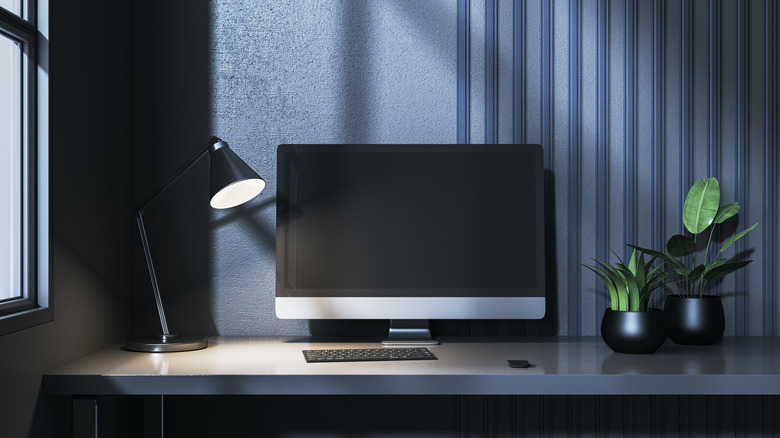
- Actionable Tip: Use the OS "Scaling" feature (set to 125% or 150%) rather than just increasing font size in one app. This ensures all UI elements—menus, icons, and text—are large enough to be read from an arm’s length away (about 20–28 inches).
5. Native Resolution and Refresh Rates
Running a monitor at a non-native resolution (e.g., running a 1440p monitor at 1080p) causes the hardware to "interpolate" pixels, resulting in a soft, blurry image.
- Actionable Tip: Always ensure your display settings match the "Recommended" native resolution. Furthermore, if your monitor supports a higher refresh rate (75Hz, 120Hz, or 144Hz), enable it. Higher refresh rates make motion smoother and reduce the "micro-stutter" that can cause nausea and eye strain during scrolling.
Official Responses and Expert Advice
Health organizations have begun issuing standardized guidelines to help the public manage these digital risks.
The American Academy of Ophthalmology (AAO) suggests that "computer glasses" are often unnecessary if environmental settings are correct. Their primary recommendation is the 20-20-20 Rule: Every 20 minutes, look at something 20 feet away for at least 20 seconds. This allows the ciliary muscles inside the eye to relax from the "near-focus" position.
The Occupational Safety and Health Administration (OSHA) provides specific ergonomic workstation guidelines, noting that the top of the monitor should be at or slightly below eye level. Looking "up" at a monitor causes the eyes to open wider, increasing the surface area for tear evaporation and leading to dry eye.
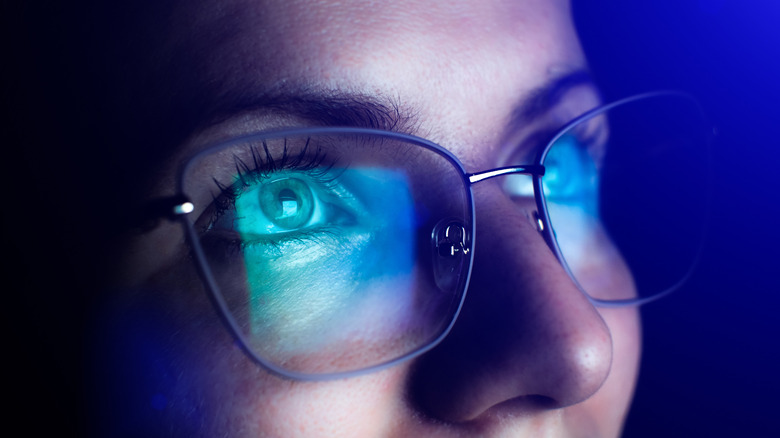
Dr. James Sheedy, a leading researcher in CVS, emphasizes that "the eyes are not designed to look at a fixed distance for hours on end." He advocates for "active ergonomics," where the user’s software settings (brightness/font) are adjusted at least twice a day to reflect changing light conditions.
Implications: The Future of Digital Wellness
As we move toward even more immersive technologies, such as Augmented Reality (AR) and Virtual Reality (VR), the implications of eye strain become even more critical. If we cannot manage the strain from a 2D monitor, the 3D focal-vergence conflicts of headsets will present a significant health hurdle.
In the corporate world, the implication is clear: Productivity. Eye strain is a leading cause of "presenteeism," where employees are at their desks but working at reduced capacity due to discomfort and headaches. Forward-thinking companies are now integrating "digital wellness" into their HR policies, encouraging the use of blue-light filters and ergonomic audits of home offices.
Summary of Actionable Steps
To protect your vision today, perform a five-minute "Digital Eye Audit":
- Lower your brightness to match your room.
- Enable a blue light filter (Night Light/Night Shift).
- Check your scaling—if you’re leaning forward to read, zoom in.
- Confirm native resolution in your display settings.
- Clean your screen. Dust and fingerprints reduce contrast and increase glare.
By treating the computer monitor not just as a display, but as an ergonomic tool that requires calibration, users can safeguard their long-term ocular health in an increasingly digital world.